Digital Footprints

A good digital citizen is a person who is wise about what they share online about themselves.

Being a good digital citizen means that you do not share your full name, phone number, address, school, and any other personal information that may not be safe to share on the internet. The reason for this being is that there are bad people out on the internet and we do not want to share information with others that may be harmful. Don’t friend someone on social media if you do not know them in person. You never know who may be trying to trick or harm you online.

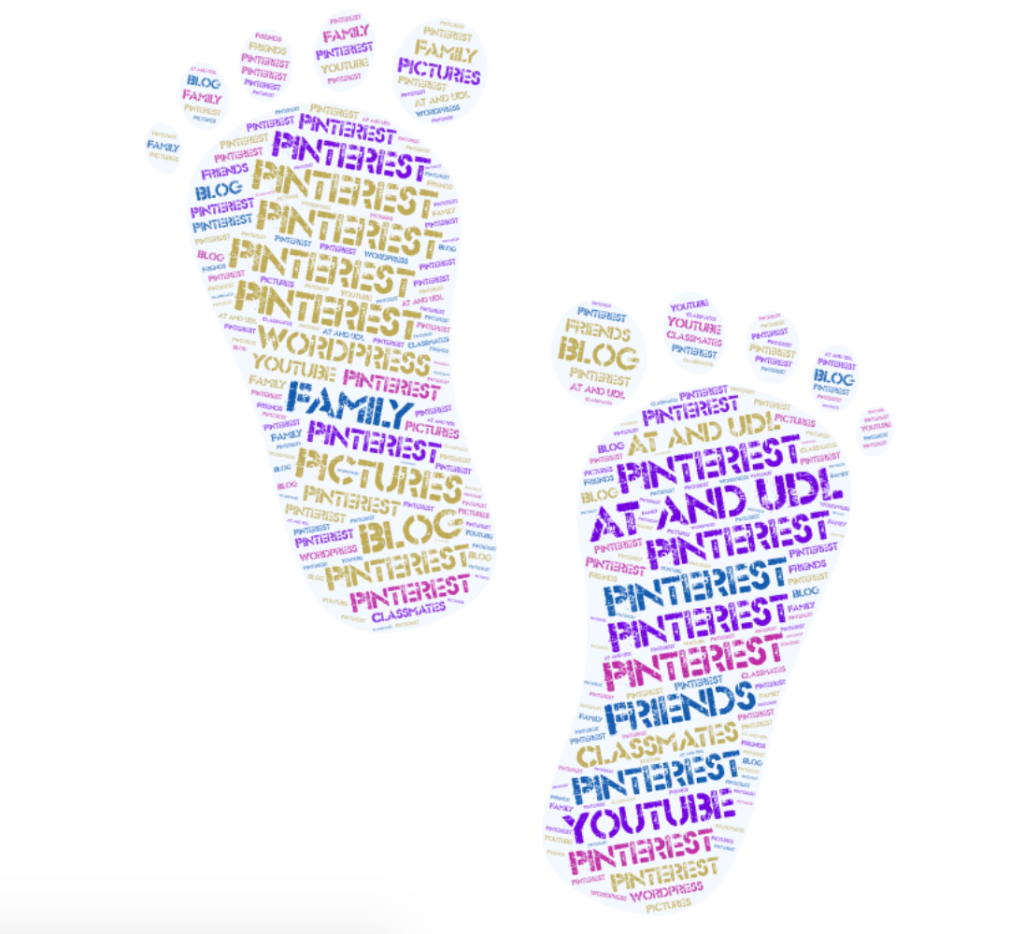
I created this image online on wordart.com

I use Pinterest to help find lesson plan ideas and classroom management and organization ideas for my future classroom. I also follow other teachers on Teacher Pay Teachers and gain ideas about lesson plans and have a wishlist of sources I’d like to buy later. I also follow Association for Middle Level website online and check in to see what new articles they have added I plan to implement as many of their ideas in my classroom as I can.

It’s important to have control over your digital footprint because as teachers we are role models to our students and they look up to us. Students and parents are always looking us up on social media. Not to mention nobody will hire you if your social media accounts are inappropriate. It’s better to clean up your digital footprint now than before something is posted online and then you can’t take it back.

UDL and AT

Assistive Technology (AT) is any item, or piece of equipment that is used to help improve functional capabilities of a child with a disability.

According to the article Assistive Technology and UDL: Two Sides of the Same Coin by Rose, Hasselbring, Stahl, and Zabala. Assistive Technology and UDL are referred to two sides of the same coin because they both can be used together to help improve learning for students. AT and UDL are described as a coin because they are very different but they can be used together just like a coin has two sides but they make up the same object.

AT and UDL are alike in that they both aim to help students succeed and learn in a way that will address their abilities and needs.

AT and UDL are different in that AT came first and then UDL. AT focuses more on the individual students with learning abilities that you have to address in your classroom and UDL focuses on addressing your classroom as a whole.

I would probably use Apple to help meet the needs of my students since most of them already have Apple device(s) at home as well. I could use Siri to help meet the needs of my students who have trouble typing. Apple has great autocorrect features for my students who struggle with reading and writing. There is also a magnifier for my students who have trouble reading what’s on their screens with the standard sized font. My students can also use face time to communicate with one another which this is helpful for my students who may use sign language. My students can also use speak screen which will allow them to listen and see what a passage says at the same time.

What resources are available to your students here in SC? At my school both the teachers and students each receive a Chromebook. This allows students to work on their assignments at their own pace. They can use a software that reads the text to them out loud I believe they use Chrome Speak.

Formative Assessments Using Technology

It is essential to continually be assessing your students for understanding the content that you are teaching them. While it is important also to assess your students’ summatively, I think that formative assessment is more critical. Because if you are not continually allowing your students to practice for the summative assessment, you are doing them a disservice. Since you are not preparing them for the summative assessment, formative assessments are essential because, as the teacher, this will show you where your students are struggling. You can make adjustments to help with their understanding before the summative assessment.

Examples of how I would us Formative Assessments in my Classroom:

Example 1: 7-3.4: Explain how the Industrial Revolution caused economic, cultural, and political changes around the world.

Explain in a presentation (PowerPoint, Prezi, Flipgrid, etc.) how the Industrial Revolution caused economic changes around the world.

I would have my students create a presentation to allow them to do something different and to learn about new technology. By having my students explain in a presentation about the Industrial Revolution and it’s economic changes, this would show me whether they understand the content or not. This assessment would give me time to go back and reteach with the students who need it or let me know that my students got it, and we can have more in-depth conversations about this or move on to the next topic.

Example 2: 6.GM.1: Find the area of right triangles, other triangles, special quadrilaterals, and polygons by composing into rectangles or decomposing into triangles and other shapes; apply these techniques in the context of solving real-world and mathematical problems.

Explain in a Flipgrid a word problem that you made up yourself using the formula for the area of right triangles. You need to show your work and solve the word problem as well. You have to comment and try two other classmates word problems as well.

I would have my students use Flipgrid to share this assignment. Because this would show me who understands the area of right triangles, who needs help writing and solving word problems, and this would allow the students to solve word problems that their classmates made up and offer suggestions as well. I think that collaboration is critical for middle school students, and it is incredibly beneficial in a Math classroom.

Privacy Policies

Today we will be looking at the privacy polices of the following applications/websites that students use in our classrooms. It is important to know the privacy polices ahead of time and to find out what information they are collecting and what they are doing with it. It is always important to have our students safety in mind when we plan technology to use with our students. We will be looking at Animoto, Prezi, Kahoot, Pear Deck, and Quizlet today.

Animoto: This site is used to create videos. Students have to be at least 13 years or older to use. If someone wants to use Animoto for promotional purposes then they have to be 18 years or older. When students register they collect information such as their names (first and last), their email, any billing information that they may use (credit card), product wishlist, and time zone. Animoto does not share personal information with 3rd parties unless that user agrees to have their information shared with 3rd parties.

Prezi: This is a site used to create presentations. You must be at least 13 years old to sign up to use the site. However, if you are between the ages of 13-18 you must have help from a legal guardian to give written permission to use this site. This site collects information such as name, email and/or phone number, title and a password. They also collect payment information if you choose to upgrade your account to the premium features. They also conduct surveys and gather support evidence to help make the site better for their users. The only information that they may share is the information gathered from the surveys and support evidence, but they are not allowed to reveal the identities of the users who filled out the surveys. Which helps to make the surveys more anonymous.

Kahoot: This is a site that is a great tool to play a review game with students. This is a great way to review with small groups of students or whole class. Teachers have to make up their own or find the review game that they want to use. You have to be 13 years old to use. However, if you have students that are under the age of 13 they only ask for your students email address. The students usually do not have to put in personal information they are usually only putting in the game code. This site is collecting most of their information from the teachers who make up the games. This site uses your information to complete purchases if you pay for something (most of the items on this site are free), send you information, and fulfill requests if you need something. There is no third party sharing with your information or your students information.

Pear Deck: This is a Google Slides add-on that allows you to create an interactive presentation with your students. The students have to have a gmail account and have the access code which will be given at the beginning of each presentation in order to access the presentation on their computers, laptops, tablets, cell phones, etc. the presentation shows up on their screens and you as the teacher can control the slide show they can only view the slide that you are on. You can also include interactive slides for them to answer through out the presentation they can answer questions, draw pictures, etc. Their answers appear anonymously on the Smartboard, but you can go back later and see what each student’s response was. Pear Deck may collect the following information while you are using their program: email address, name, your picture on your Google profile if you have one. If they collect information about you it is in order to help improve the program. They do partner with third party programs such as cookies in order to collect information to improve their program. You do have to pay for the premium features after the free trial runs out if you choose to keep using the premium features of Pear Deck.

Quizlet: This is a site and an app that allows students to make their own interactive flashcards. Teachers can also make up their own flashcards to share with their students. Students can play various games, study tests, and so on to learn the material. It is mostly used in my classroom to study new vocabulary. You need to be 13 years old or older in order to access the all the features that Quizlet has to offer. However if you are under the age of 13 you can still have an account but it will have child safety features on it which will not allow students to access all of the features of Quizlet. If you create an account it collects the following information: username that you make up and your email address. Quizlet does not take your information and send it to third parties your information remains private, except for your username this is public whenever you choose to share your flashcards. They also conduct surveys periodically in order to make the site/app better for their users.

As I reflect on these policies I have come to the conclusion that I would still use these websites/apps. These are great tools that are very beneficial for my students. They are secure and ensure personal protection for myself and my students. The one that is the most appealing to me is Pear Deck because I have to be able to access my students in short amounts of time and they love using Pear Deck and they don’t even know that they are being assessed which means that I am getting more genuine responses from them. I am in a 7th grade classroom right now and they love using Pear Deck. We also use Quizlet, quite often. I want to try to use Kahoot, Animoto, and Prezi in the future with them as well.
Choosing Technology Tools

Criteria to use when choosing appropriate technology tools in my classroom:

  • Is it free or low cost?: This is an important component when choosing an appropriate technology for your classroom. You have to take into account that your technology needs to be affordable for all of your students. When it is free more students are going to be able to access it which is the goal for all of your students to be able to use it.
  • Is it easy to use/understand?: If the technology that you are using involves a lot of steps this is unfair to ask students to work on outside of your classroom, if you are not there to assist them with help. If you are using a more complicated technology I would do this in the classroom. If you are assigning technology for them to work on at home have them work on something that they have done in the classroom with you, or is something that they are more familiar with using.
  • Little Personal Information Input By Students: You do not want your students to use a technology that is asking for a lot of personal information. This can be dangerous for them. You do not want anyone being able to track your students or gain their identities. Your students safety should always be your number one priority.

Helpful website to refer back to in order to integrate technology in my courses later on:

I like the list of helpful websites to use for each content area from Educators Technology. I will definitely use this website in order to help lesson plan in the future. Because I am studying to teach both Social Studies and Math this is especially helpful to have links with ideas for both content areas on one website.

Referring to my Mapping Content and Science Standards document, here’s two activities and two to three technology tools that I could use to complete the activity:

  • Activity 1: Students will explain in an interactive document with their group the key events and outcomes of the French Revolution be sure to include at least two of the three: The Storming of the Bastille, the Reign of Terror, or Napoleon’s rise to power.
    • Technological Tool: Students can use Google Docs to work on an interactive document in their groups. Google Docs is a great tool because it allows multiple people to work on the same document at the same time and it automatically saves everything. This is a great tool to use when students are working in pairs or groups together.
    • Technological Tool: Students can use Flip Grid to share their thoughts, ideas, facts about the French Revolution and students can respond to each others videos. Flip Grid is great because it allows you as the teacher to set a time limit on how long their videos can be and they can use this app on their computers, tablets, and cell phones to record themselves with. Flip Grid is free which is one of my favorite features about this tool!
  • Activity 2: Students will explain in a presentation how the Industrial Revolution caused economic changes around the world.
    • Students can use a Prezi for their presentations. Prezi is great because it allows students to create their own presentations however they want to. I love being able to see my students creativity come alive and I am always impressed by my students Prezi presentations. Prezi is free which is my favorite part!
    • Students can use PowerPoint or Google Slides for their presentations. Both of these tools allow students to create presentations with the format of Microsoft Office which is something most of the students will be familiar using so you probably won’t have to teach them how to use this tool. Google Slides is a little bit easier for students to collaborate with if they are working in pairs or groups versus a regular PowerPoint.

Review District Computing Guides

These are the things that I felt was most important to know about the technology rules in the school district that I am interning at this semester.

The Purpose is: To establish the board’s vision and the basic structure for the use of technology resources in instruction.

These are the types that are restricted in the school district.

Prohibited material includes, but is not limited to, the following:
 obscenity or pornography
 threats
 material that is intended, or could reasonably be perceived, to be harassing or discriminatory
 inappropriate use of material that is copyrighted or protected by trade secret
 material used to further any commercial business, product advertising, virus transmission or
political activity
 material that is potentially disruptive of the learning environment

The school district I am at gives all of the students and staff district emails. Because of this they have a set of rules that everyone must abide by:

The district prohibits the use of its email system for unprofessional and/or inappropriate purposes to include, but not be limited to, the following:
 creating, transmitting or receiving emails containing any language or depictions that could reasonably be perceived by others as being offensive, threatening, obscene, sexual, racist or discriminatory
 any use that violates local, state and/or federal laws or regulations
 setting up or operating a commercial business
 E-mail signatures should not include religious statements, political statements, or
group/organization memberships

The district allows the teachers and the students to use Google Classroom. Here are the rules that they have on using Google Classroom.

The G Suite for Education accounts are managed by the district and offer additional
protections and restrictions over private accounts. The student accounts include:
● Google Drive that offers unlimited online storage as well as powerful tools such as Docs
and Slides that allow students to create and store a variety of files.
● Google email that is restricted to the district accounts.
*Kindergarten – 4th grade elementary email accounts are suspended and cannot send or
receive email.

*5th grade, Middle School and High School email accounts are restricted
and only allow students to send or receive from other district accounts.

*The only exception is PlanetHS which is used by student athletes to register
and process eligibility requirements.
● Electronic monitoring services that promote the safest possible online experiences for
students.

ED Tech Blogs

These are some blogs that I have found to be very useful for my content areas so far.

The first blog is the Association for Middle-Level Education. I have found a lot of great suggestions and ideas for Middle School teachers on here from various Middle School teachers themselves. The section on technology has some excellent tools and ideas that I’ll probably use for this course and in the future.

The second one is Free Technology for Teachers by Richard Byrne. I like that he posts multiple times a day. I appreciate that he has lots of ideas and shares lots of different topics in regards to technology in the classroom.

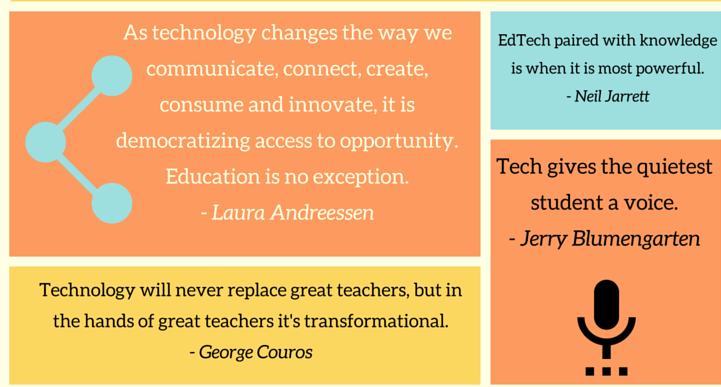
Also the picture I got is from EDTech 4 Beginners. Which is another cool blog for educators.